Adobe Illustrator Solutions
for CAT Tools
1. Introduction & Overview
Welcome to the Adobe Illustrator Solutions User Manual. These tools allow you to translate Adobe Illustrator (.ai) files directly within your CAT tool environment — without needing Adobe Illustrator installed on your computer.
Two solutions are available, each purpose-built for its respective platform:
- Trados Studio Plugin — a native file-type plugin for SDL Trados Studio 2022 & 2024. Illustrator files appear alongside any other supported format directly in your projects.
- memoQ Project Template — a pre-configured project template for all current versions of memoQ, bundling the correct filter and script settings for seamless import and export.
Both solutions use the secure Tokr Cloud to extract text, formatting, and stylistic layers from complex Illustrator files into a CAT-friendly XLIFF format. Once translation is complete, the system rebuilds the localized .ai file with pixel-perfect formatting.
2. System Requirements & Prerequisites
- Supported Platforms: Trados Studio 2022 or 2024 · memoQ (all versions supporting project templates)
- Operating System: Windows 10 or Windows 11 (64-bit)
- Mandatory App: Tokr Hub Desktop (available in the Microsoft Store) must be installed and running in the background for license authentication and cloud processing.
- Internet Connection: A stable broadband connection is required. File extraction and rebuilding rely on secure connections to the Tokr Cloud servers.
Note on File Sizes
Adobe Illustrator files containing embedded high-resolution graphics can be very large. A standard broadband connection is recommended to prevent server poll timeouts during the upload or rebuild phases.
3. Installing & Starting the Hub
Step 1 — Install Tokr Hub Desktop
- Open the Microsoft Store app on your Windows computer.
- Search for Tokr Hub Desktop and click Get or Install.
- Alternatively, click this link to open the Store install page directly.
Because Tokr Hub is officially distributed through the Microsoft Store, the app is digitally verified, securely installed, and will update automatically when new features are released.
Step 2 — Launch Tokr Hub
Click into the Windows Search box, type Tokr.Hub.Desktop, and press Enter to run it.
Step 3 — Install the Solution
- Open Tokr Hub and log in using one of the available authentication methods.
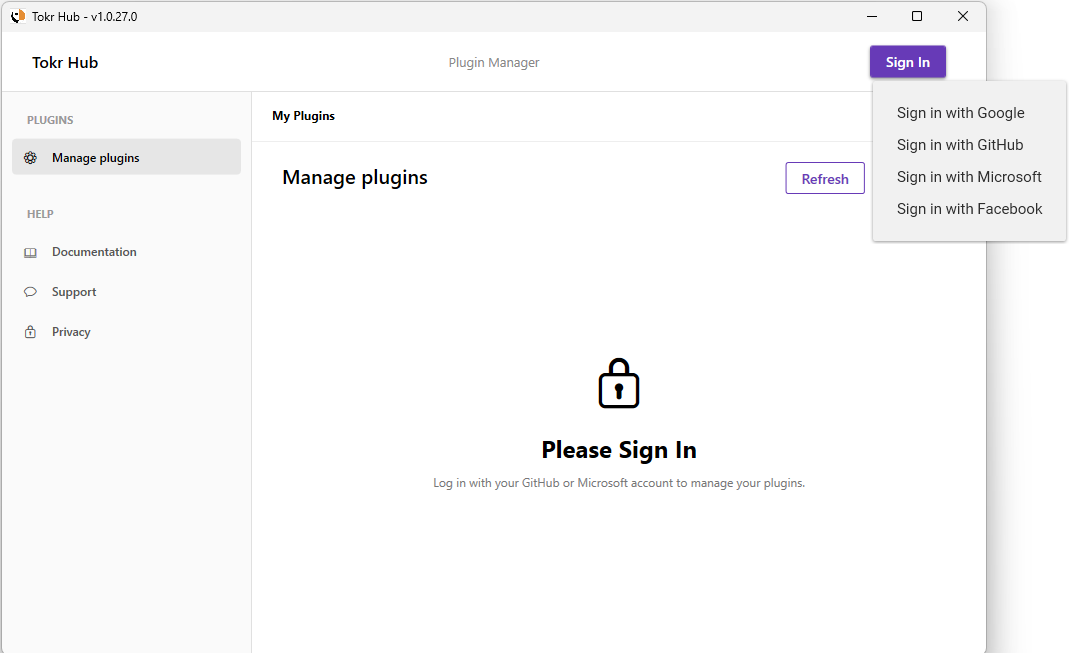
- Navigate to the Plugins tab (Trados) or Templates tab (memoQ) in the sidebar.
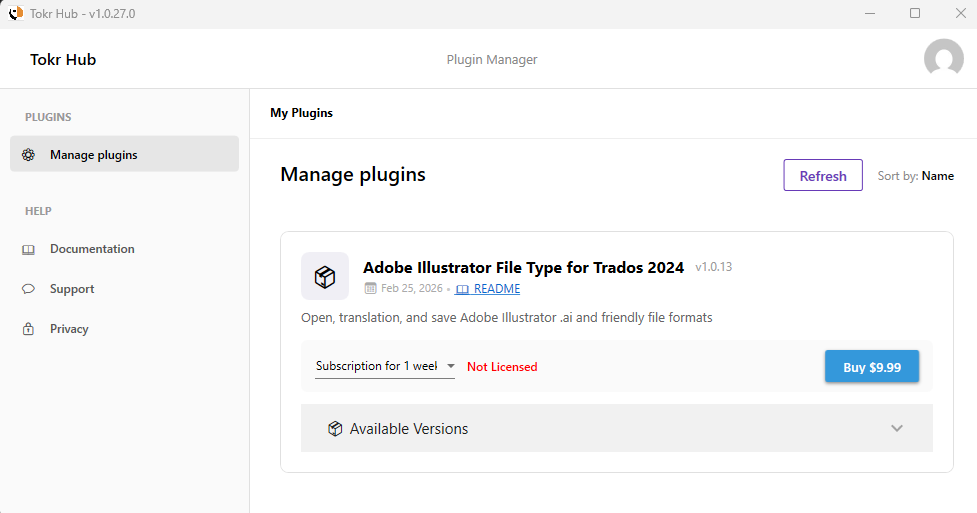
- Locate "Adobe Illustrator File Type for Trados 2024" or "Adobe Illustrator Project Template for MemoQ".
- Click Install. If this button is not visible, click Available Version to expand the drop-down. (A Reinstall button indicates the version is already installed.)
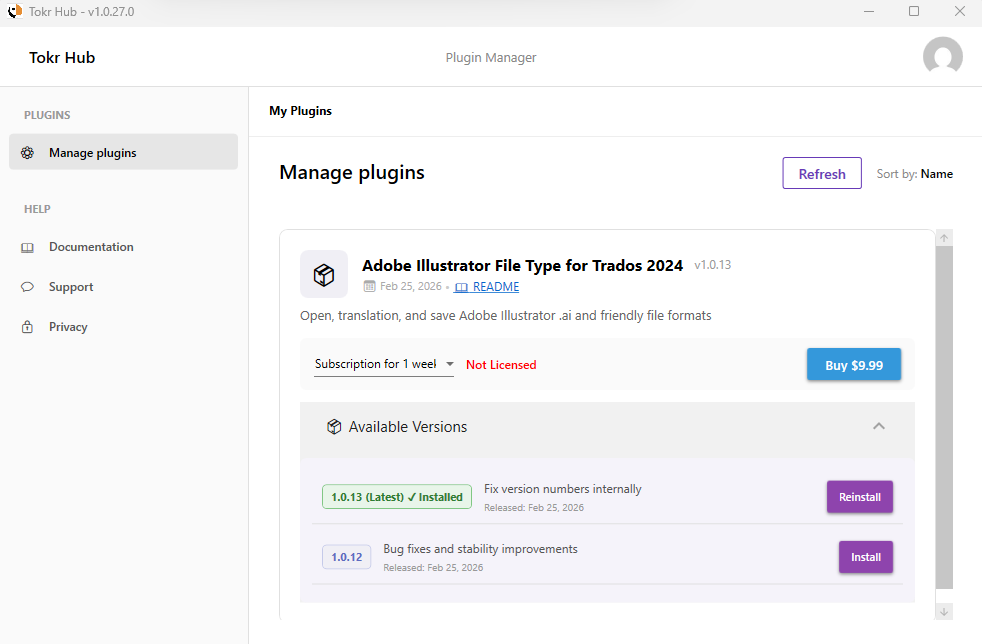
- Tokr Hub automatically deploys the
.sdlplugin(Trados) or.mqres(memoQ) file to the correct local directories. - Restart your CAT tool if it is currently open.
Trados: Unsigned Plugin Warning
When you start Trados Studio after installing the plugin, you may see an Unsigned Trados Studio Plug-in Found warning. This is expected for any third-party plugin. Click Yes to load it.
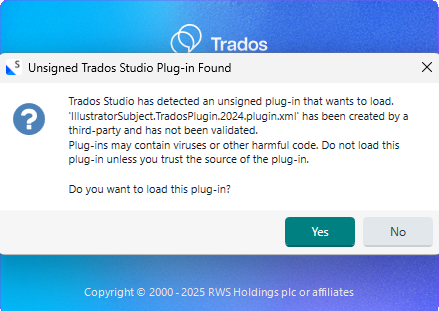
To verify the plugin loaded successfully, navigate to the Add-Ins tab and click Plug-ins.
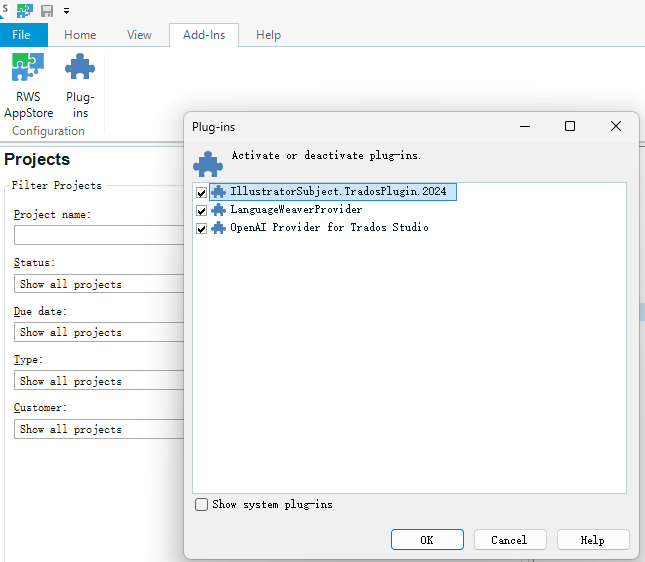
4. Licensing & Activation
Your license is managed through the Tokr Hub. Sign in using your Google, GitHub, Microsoft, or Facebook account. The software automatically detects your active machine ID and authorizes processing for both Trados and memoQ environments.
If you see a Not licensed status next to the solution, you will need to purchase a subscription plan by clicking the drop-down list.
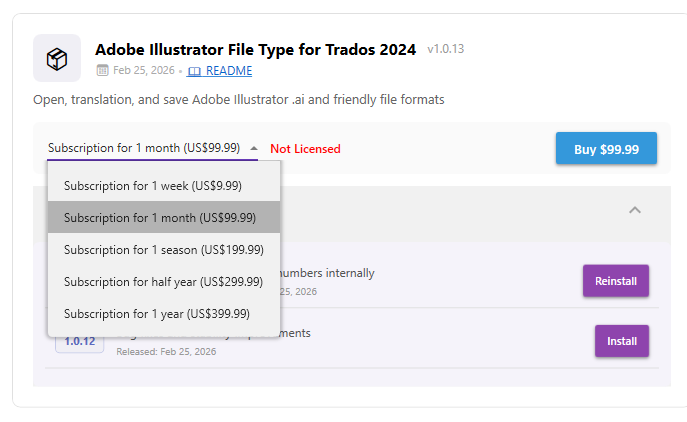
We use PayPal as our secure payment processor. When you click Buy, a payment window will appear. We currently accept payments in US dollars from payors outside mainland China.
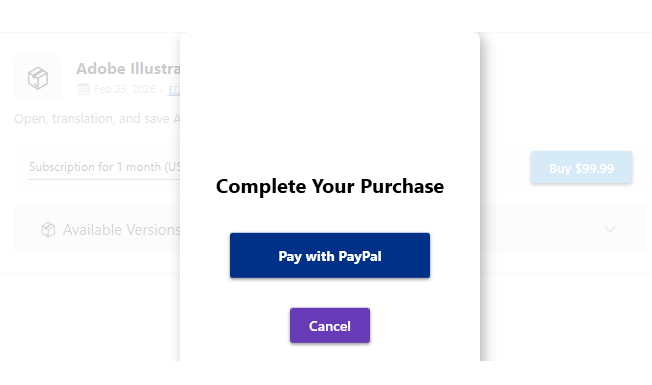
Important: Email Address
During checkout, ensure a valid email address is pre-filled or entered. This email will be your primary identifier for support and future contact, and may differ from your Tokr Hub login email.
If you prefer not to use a PayPal account, PayPal also supports direct payment with a bank card (credit or debit).
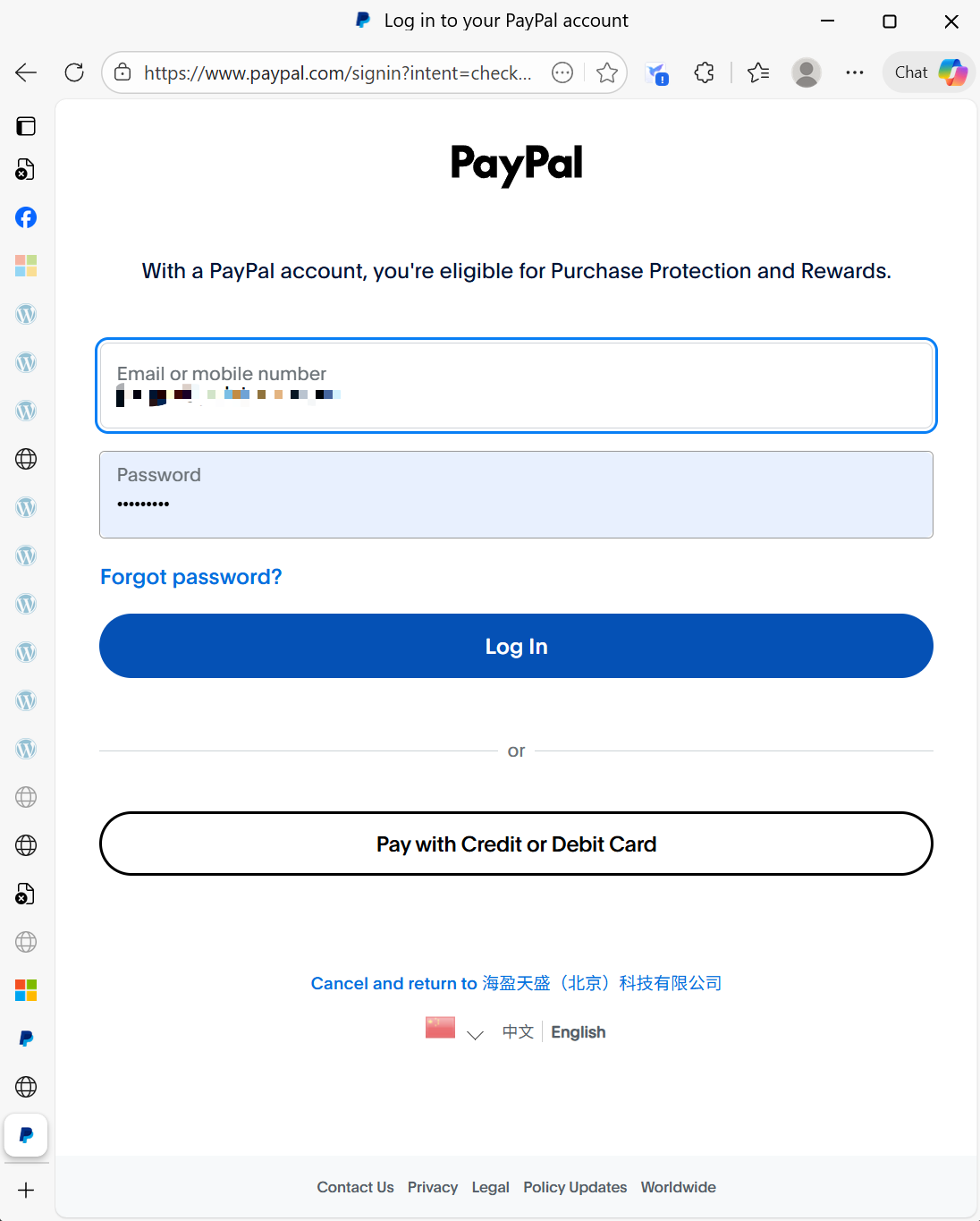

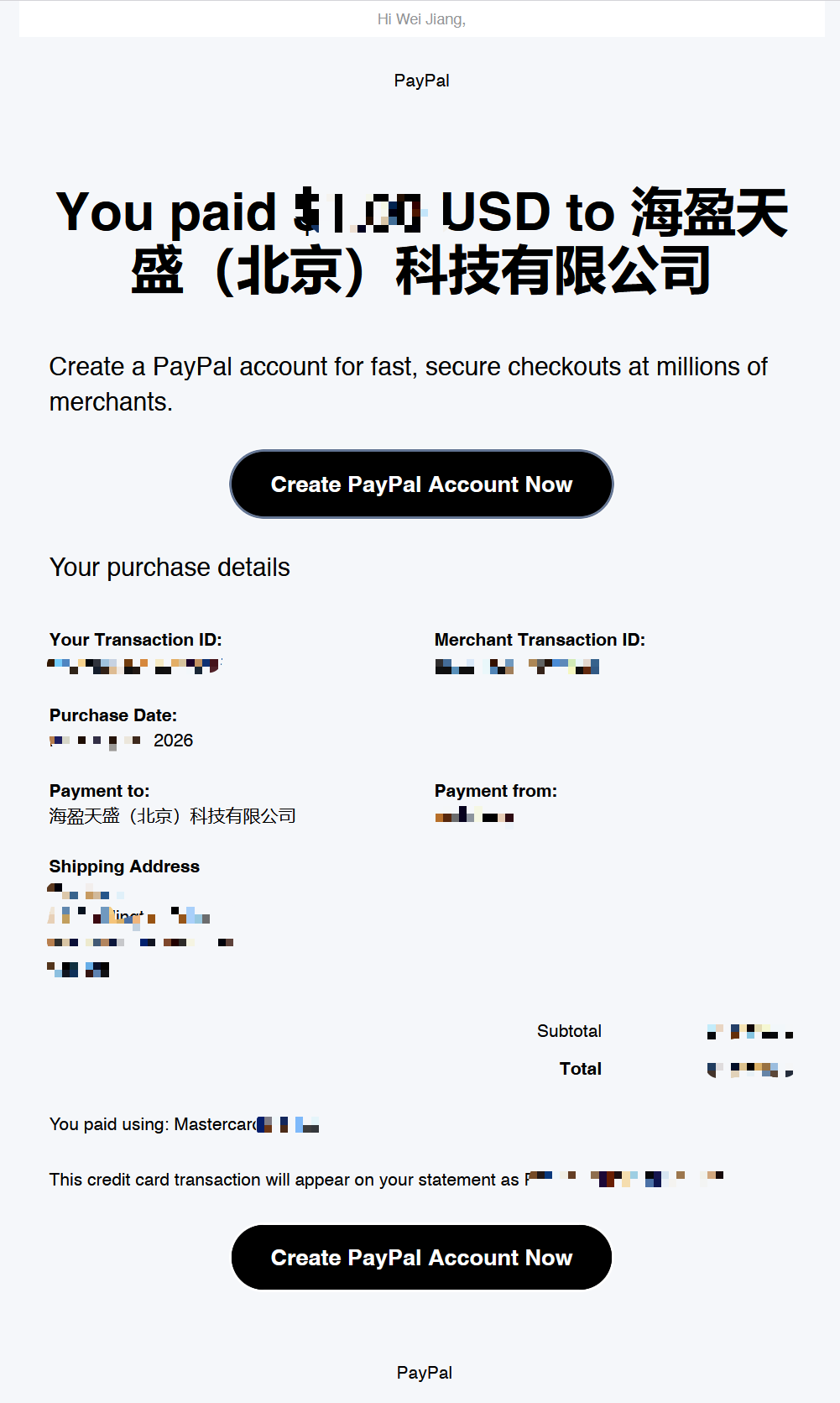
The payee reads as Hai Ying Tian Sheng (Bei Jing) Ke Ji You Xian Gong Si (High Intention (Beijing) Technologies Co., Ltd.) — our official registered business entity in mainland China.
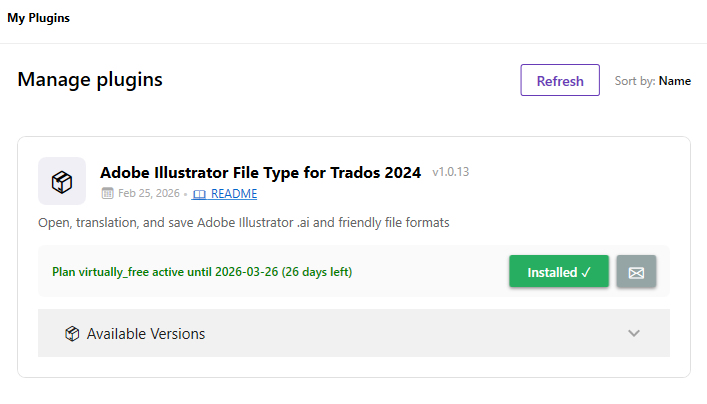
When payment is complete, Tokr Hub automatically refreshes and shows your subscription info in green. You can also click Refresh to force-update it.
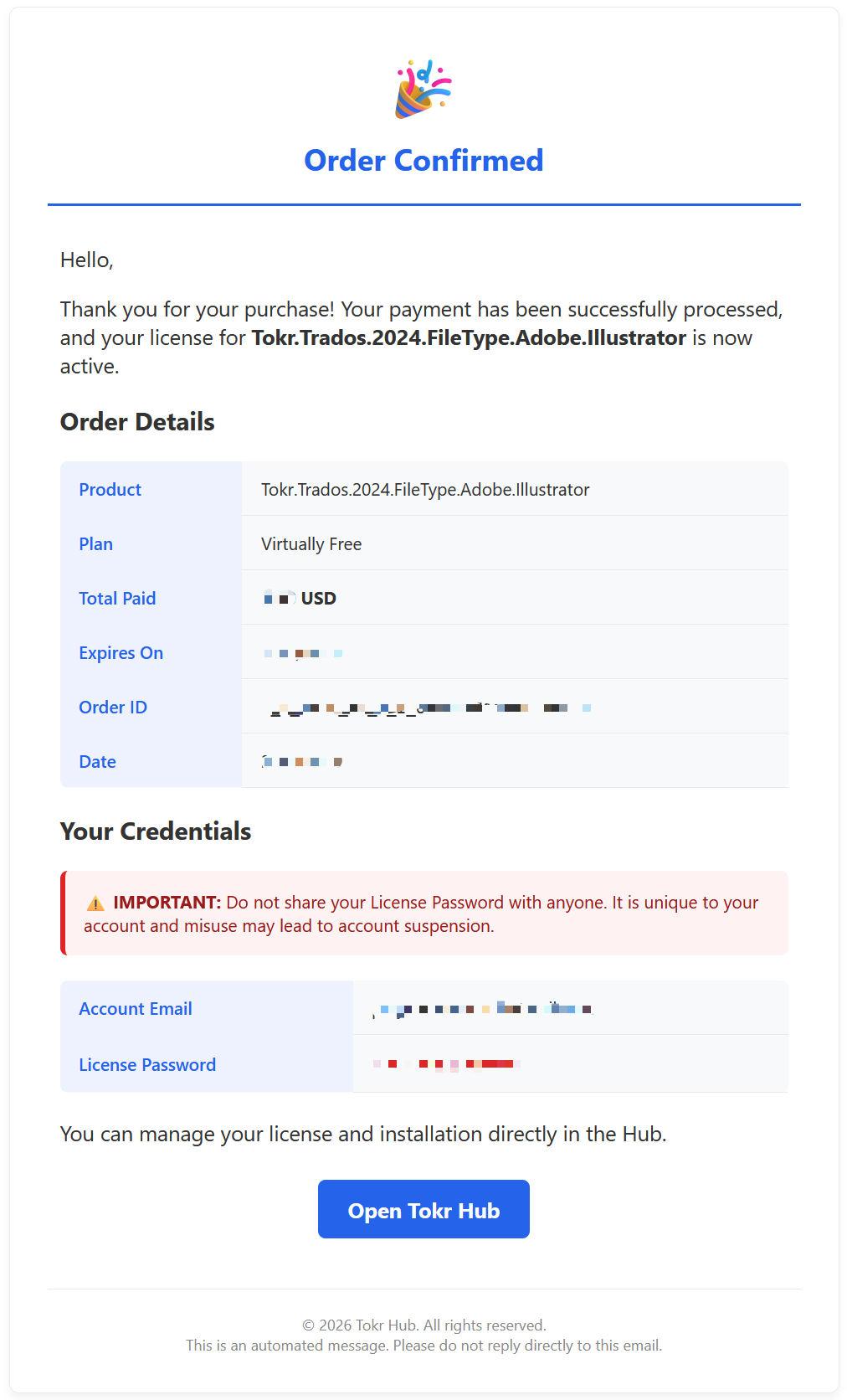
You will receive two email confirmations: one from Tokr Hub, and one PayPal or card receipt. Please keep both for your records.
5. Test Drive & Trial Program
Curious about the technology before committing? Give the solution a test drive using our standalone web interface at ai2xlf.translators.surf. This online tool uses the same core extraction and rebuilding technology and is an excellent first evaluation step.
In the Tokr Hub Desktop app, this corresponds to the first option listed under subscription plans. For a detailed guide, see the Online Help Documentation.
Invited Tester Trial
For those who wish to test the full integration, we offer a Trial subscription for 1 month (US$99.99). This option is intended for invited testers and is fully refundable if you are not satisfied with the results.
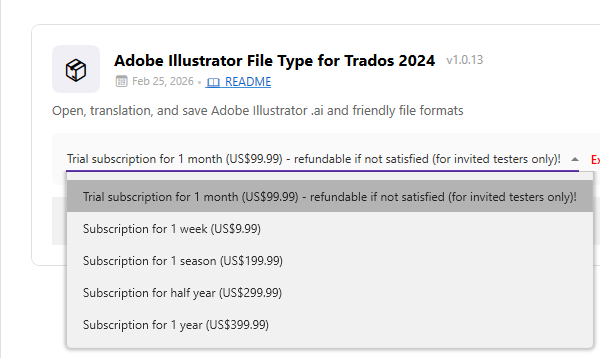
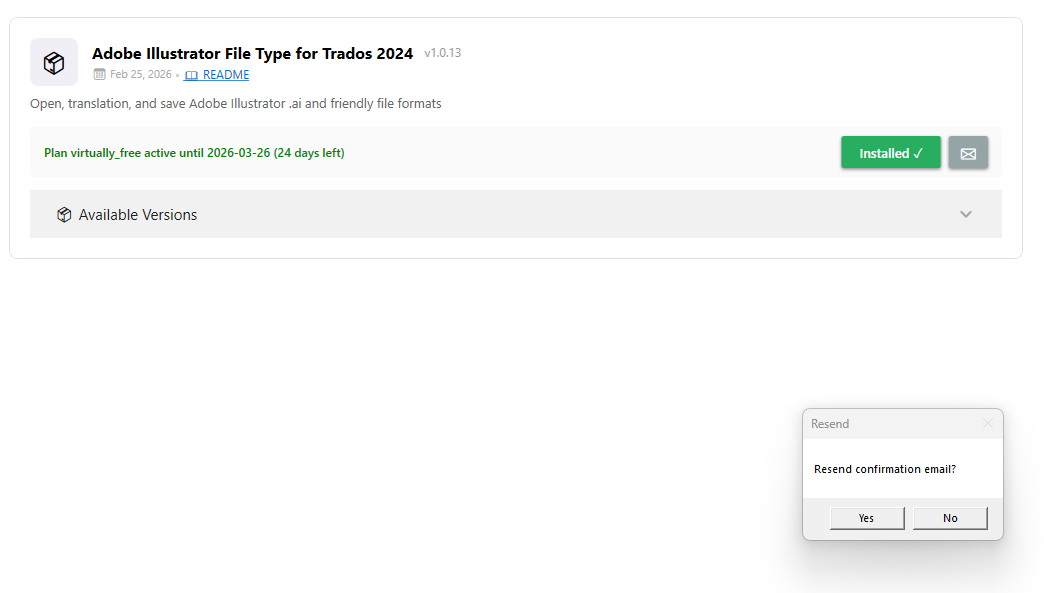
You can have the order confirmation resent to your registered email at any time by clicking the small envelope button next to the installation status.
6. Step-by-Step Translation Workflow
Select your CAT tool below. Both tools follow the same conceptual phases — set up, import, translate, export — with platform-specific steps in each tab.
6a — File Type Settings
Inspect and configure the plugin by navigating to File > Options > File Types > Illustrator AI Files.
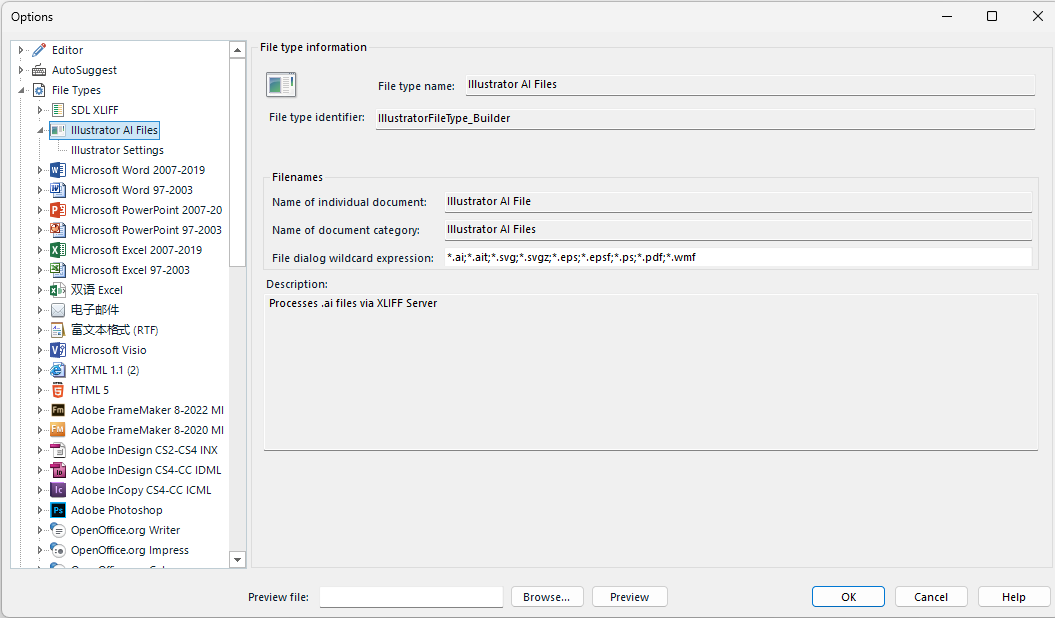
Configurable Options:
- Network Timeout: Extend the maximum server polling wait time for large files (>100 MB).
- Layer Visibility: Choose whether to extract text from hidden layers or locked objects.
6b — Preview & License Verification
The Connection tab shows server status and a Preview file feature. Even before purchasing, you can test the extraction leg using the bundled sample file:
%AppData%\Roaming\Trados\Trados Studio\18\Plugins\Unpacked\IllustratorSubject.TradosPlugin.2024\Resources\sample.ai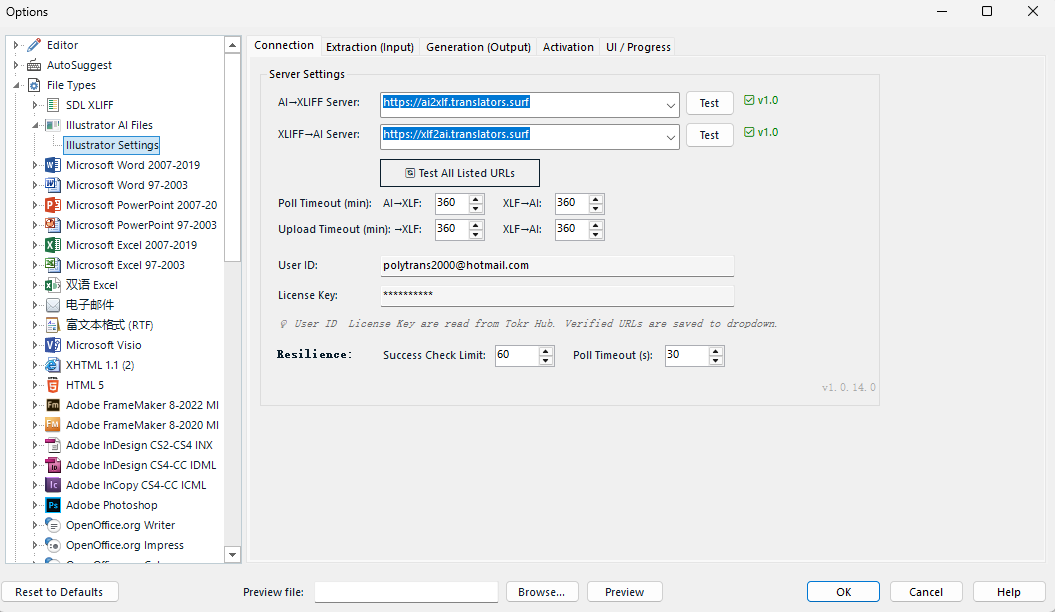
An active internet connection is required for preview, as the plugin must access the online ai2xlf server. The preview result is a read-only viewer — it confirms the extraction leg works correctly. The sample file completes in approximately one minute.
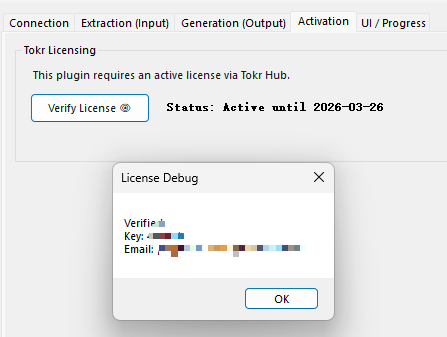
To verify your full subscription for the complete round-trip, navigate to the Activation tab and click Verify License.
6c — Create a Project & Translate
-
1Add the file Drag and drop your
.aifile into Trados Studio, or use the Create New Project wizard. -
2Cloud Conversion Phase When Trados reads the file, it invokes the plugin. A progress window appears as the file is securely uploaded, converted to XLIFF on the cloud, and downloaded back to Trados. (Depending on file size, this may take 10–60 seconds.)
-
3Translate The file opens in the Editor view with source text strings, character formatting data, and structural tags — exactly like any standard document.
Formatting Tags
Handle inline structural tags with care. Deleting tags may cause font loss or misalignment when the target .ai file is rebuilt.
6d — Generate Target Files
-
1Save / Generate Go to File > Save Target As…, or use the Generate Target Translations batch task in the Files view.
-
2Cloud Rebuild Phase The plugin packages your translated XLIFF and instructs the Tokr Cloud to rebuild the layout.
-
3Choose Save Location A save dialog will prompt you to choose the destination folder for the final localized
.aidocument.
The Adobe Illustrator Project Template for memoQ (v1.0.4) gives memoQ users access to the same Tokr Cloud extraction and rebuilding technology. The template arrives pre-configured with the correct filter settings and scripts — no manual setup required.
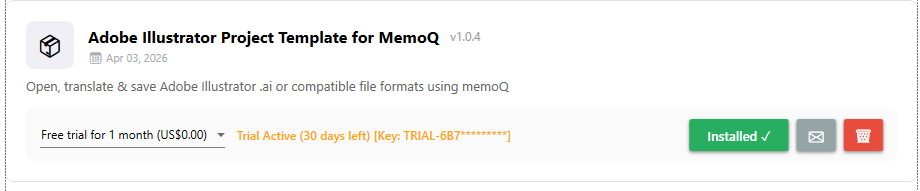
Upon installation via Tokr Hub, the template is automatically deployed to:
C:\ProgramData\MemoQ\Resources\Local\ProjectTemplate\Prerequisite
Like the Trados plugin, the memoQ template requires Tokr Hub Desktop to be running for authentication and cloud processing.
Walkthrough
-
1Start a New Project from Template In memoQ, select New Project > New Project from Template.
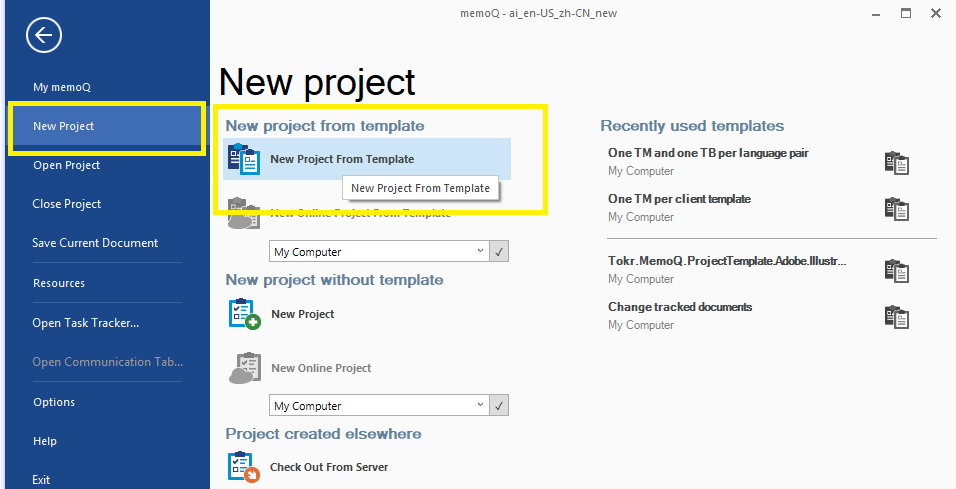 Figure 21 — Creating a new project from template in memoQ
 -
2Select the Tokr Template Click Next, then select Tokr.MemoQ.ProjectTemplate.Adobe.Illustrator from the drop-down menu.
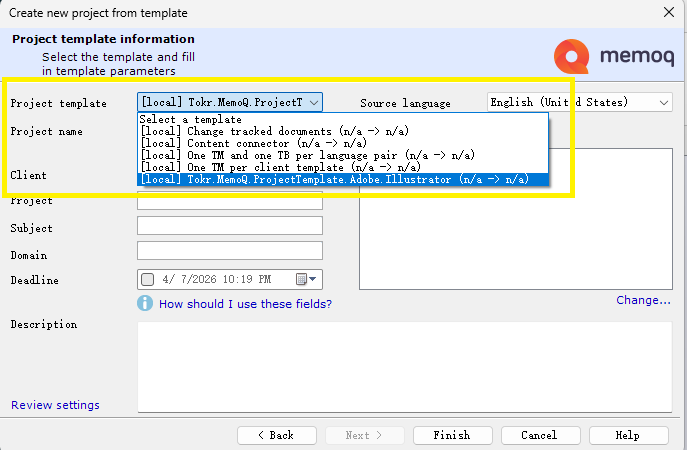 Figure 22 — Selecting the Tokr template in memoQ
 -
3Import .ai Files An empty project will be created. Go to the Translations pane, right-click the empty list, and select Import. Then choose the
.aifiles you wish to translate.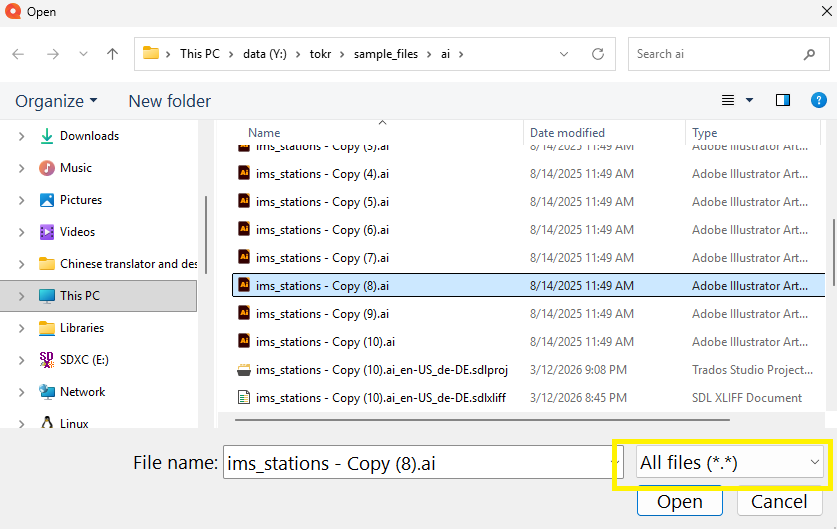 Figure 23 — Importing .ai files into the memoQ project
 -
4Wait for Cloud Preprocessing
The cloud extraction step may take some time depending on file size and connection speed. Please wait for the process to complete before proceeding.
-
5Configure Filter Settings Once preprocessing is complete, the Document import options dialog will appear. Select all files and click Change filter & configuration.
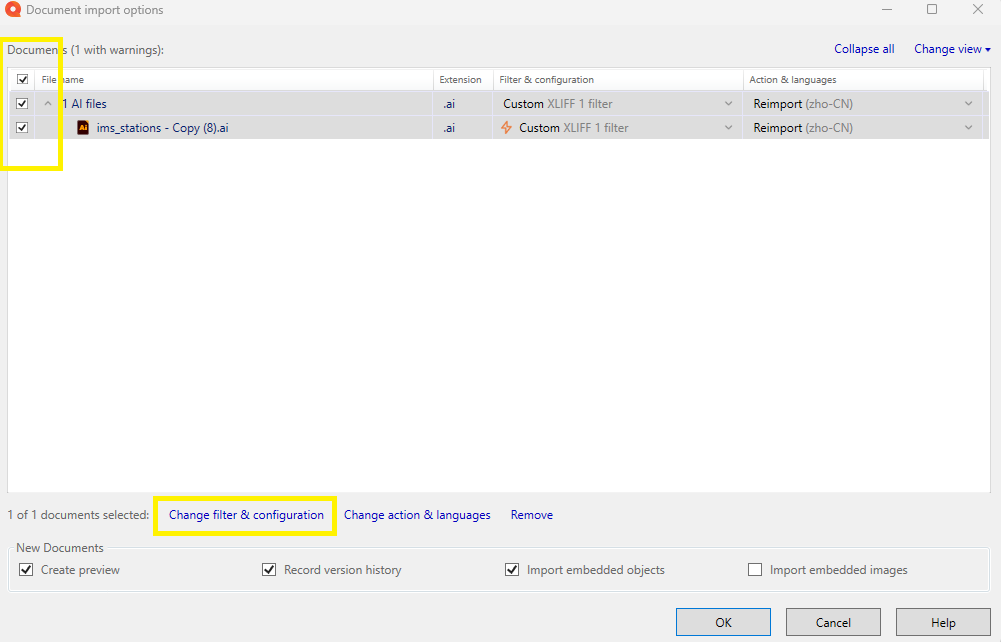 Figure 24 — Document import options dialog in memoQ
 -
6Finalize Import Settings In the Document import settings dialog:
- Set Filter to
XLIFF 1 filter. - Under Segmentation, ensure "Segment text if there are no segment boundaries…" is selected.
.aifiles will appear in the project, ready for translation.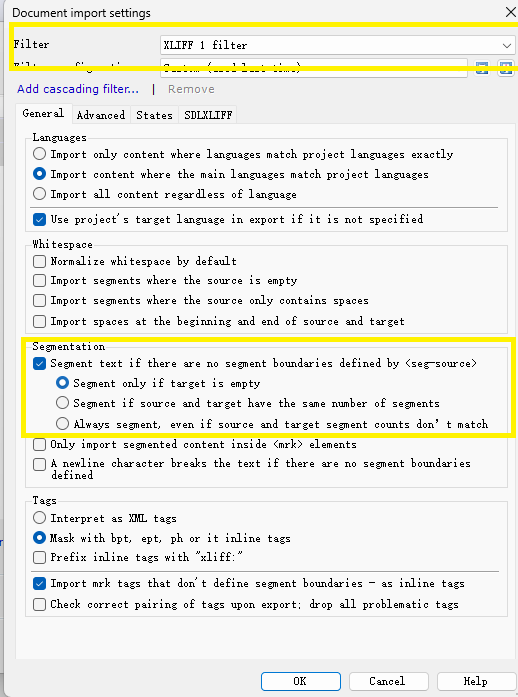 Figure 25 — XLIFF 1 filter and segmentation settings
 - Set Filter to
-
7Export Translated Files Once translation is complete, go to the Documents ribbon and click Export (Export Dialog).
The export process (cloud rebuild of the Illustrator layout) may take a few moments depending on file size. Please wait for the process to complete.
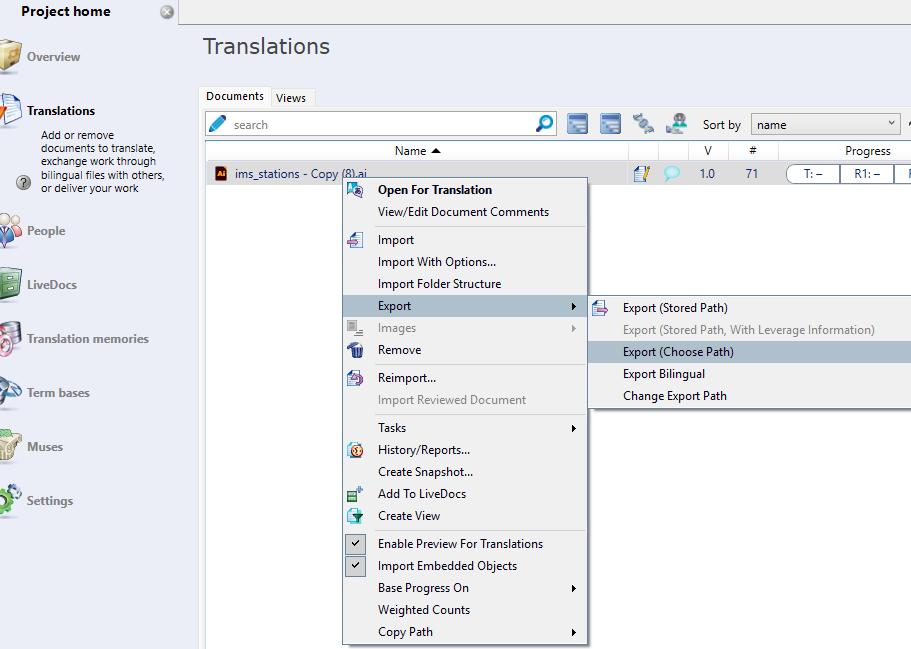 Figure 26 — Export dialog in memoQ
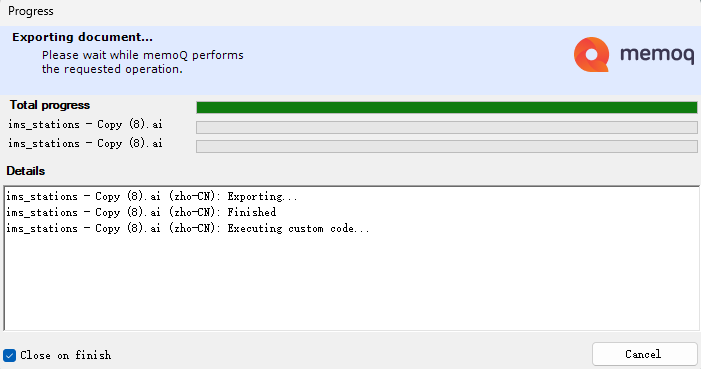 Figure 27 — Export progress indicator
7. Troubleshooting & Common Errors
"Server Poll Timeout"
Cause: The file was too large or complex to process within the default network limit.
Solution: Increase the timeout threshold in your solution's settings (File Type Settings in Trados, or the memoQ template's script configuration).
"Session Limit Reached" / "Unauthenticated"
Cause: You have reached your active device limit, or your Tokr Hub authentication token has expired.
Solution: Open Tokr Hub, review your active sessions, sign back in, and verify your internet connection is stable.
Target Generation / Export Failed
Cause: Often caused by misplaced or deleted formatting tags in the editor.
Solution: Run your tool's tag verification check (e.g., F8 in Trados Studio) to confirm all source tags are correctly placed in target segments before generating the output file.
8. Privacy & Data Security
We understand that Adobe Illustrator files often contain highly sensitive or proprietary visual content.
- Encrypted Transfer: All files are transmitted using TLS encryption.
- Zero Retention: Your
.aifiles are processed in ephemeral server instances. As soon as conversion or rebuilding is complete, your source assets, translated text, and outputs are automatically and permanently deleted from our cloud servers. - No AI Training: Tokr International does not use your translation data or source files to train artificial intelligence models.
For detailed legal information, please read our Full Privacy Policy.
9. Source File Integrity
Before beginning translation, ensure your source files contain live, editable text. If text has been "outlined" (converted to vector shapes), it cannot be extracted.
File Format Categories
- Safe (Native/Semi-Native):
.ai,.pdf,.svg— designed to preserve live text layers. Highly recommended. - Quasi-Safe (Legacy/CAD):
.wmf,.emf,.eps,.dwg— may contain text, but are prone to the "Letter Salad" effect where text fragments into individual characters. - Reconstruction (One-way):
.doc,.docx,.rtf— text remains live, but the original layout typically needs complete rebuilding after opening in Illustrator.
The "Letter Salad" Warning
Legacy formats like .eps or .wmf often break continuous sentences into fragmented text blocks, disrupting TM leverage and making the target document extremely difficult to edit.
Verification Protocol: Outline Mode
You can verify whether text is live using Adobe Illustrator's Outline Mode:
- Open the file in Adobe Illustrator.
- Press
Ctrl + Y(Windows) orCmd + Y(Mac) to enter Outline Mode. - Analyze the text:
- Live Text: You will see the full interior of each character — counters (enclosed spaces) are visible.
- Outlined Text: You will only see hollow silhouettes. This text is not editable and cannot be extracted.
- Press
Ctrl + Yagain to return to Preview mode.